How to Write Dialogue for Fake Chat Screenshots That Reads Like a Real Conversation
Most fake chat screenshots fail before anyone opens the generator. The bubbles look right, the header looks right — and the conversation still reads as written, not texted. Real chats are uneven: short replies, interruptions, a joke that lands two messages late. This guide walks you through writing the dialogue first, then staging it in a chat generator, in about fifteen minutes.
The examples use ChatShot's free generators for WhatsApp, Telegram, and iMessage. The writing steps are the same on all three; only the bubble style changes.
Before you write: two voices, one scene
Every ChatShot editor models a one-to-one conversation: one contact, two voices. That is a constraint worth writing to, not around. Pick one scene and two people in it — the person telling the story and the person reacting to it. If your idea needs eight speakers, simplify it to its central exchange: name the chat like a group thread if the scene calls for it, and script the two voices that carry the joke or the news. The rest is noise a viewer will not miss.
Write the dialogue on paper (or in a notes app) before you touch the generator. Editing a script inside a bubble editor is slow; rewriting a finished script there is fast.
Step 1 — Start from one sentence, not one joke
A good fake chat starts with a situation, not a punchline. Write one sentence that names who is texting, what just happened, and what is at stake:
- "Maya texts her brother that she accidentally invited their mum to the surprise party."
- "A customer messages a shop about a delivery that arrived a day early."
- "Two friends realise they have both been invited to the same weekend trip by different people."
If you cannot say it in one sentence, the scene is too big for one screenshot. Cut it in half and keep the half with the turning point.
Step 2 — Outline three beats: setup, turn, landing
Real conversations have a shape. Sketch three beats before you write any lines:
A chat that is all setup reads as flat. A chat that is all punchlines reads as scripted. Three beats, in that order, is the shape that survives a skeptical read.
Step 3 — Write the lines the way people text
Now write the actual messages, following the beats. A few rules that do most of the work:
- Keep messages short and uneven. Mix one-word reactions ("wait", "no way", "lol") with longer explanations. A wall of perfectly punctuated paragraphs is the fastest tell.
- Let each voice sound different. One person asks short questions; the other over-explains. If you swapped the names and nothing changed, the voices are not distinct enough yet.
- Use the imperfections of texting, sparingly. A lowercase start, a missing apostrophe, a "haha" that trails off — one or two per thread, not one per message. Overdoing typos reads as performed, not natural.
- Leave small gaps in logic. People text with shared context. "did u tell her??" works because the viewer fills in the rest; spelling out every detail makes the chat read like a caption.
- Do not write stage directions into the dialogue. No "[laughs]" or "(sarcastically)". If the tone needs a label, the line itself is not doing its job — rewrite the line.
Aim for 6–10 messages total. Fewer than that and the scene feels thin; more than that and the screenshot becomes a wall of text nobody finishes reading.
Step 4 — Stage the script in the generator
Open the generator for the platform your scene belongs to — the fake WhatsApp chat generator, the Telegram generator, or the fake iMessage chat generator — and get a starting thread. Then rewrite the thread bubble by bubble to match the script you wrote: replace each line with your own wording, delete lines that do not earn their place, and insert lines only where the beat needs one.
Two limits to plan around, verified on the iMessage editor and true to the one-to-one model everywhere: inserted messages land on your side of the conversation, so build the other person's lines by rewriting existing bubbles rather than by inserting them; and timestamps are fixed once a thread exists, so if a time reads wrong for your story, change the wording or regenerate rather than planning to retime individual bubbles.
Check the frame while you are there: one contact name in the header, an initial-letter avatar, and the platform's usual bubble colours. The frame should match the scene — a formal name on a joke between friends, or a nickname on a customer-service exchange, breaks the illusion faster than any typo.
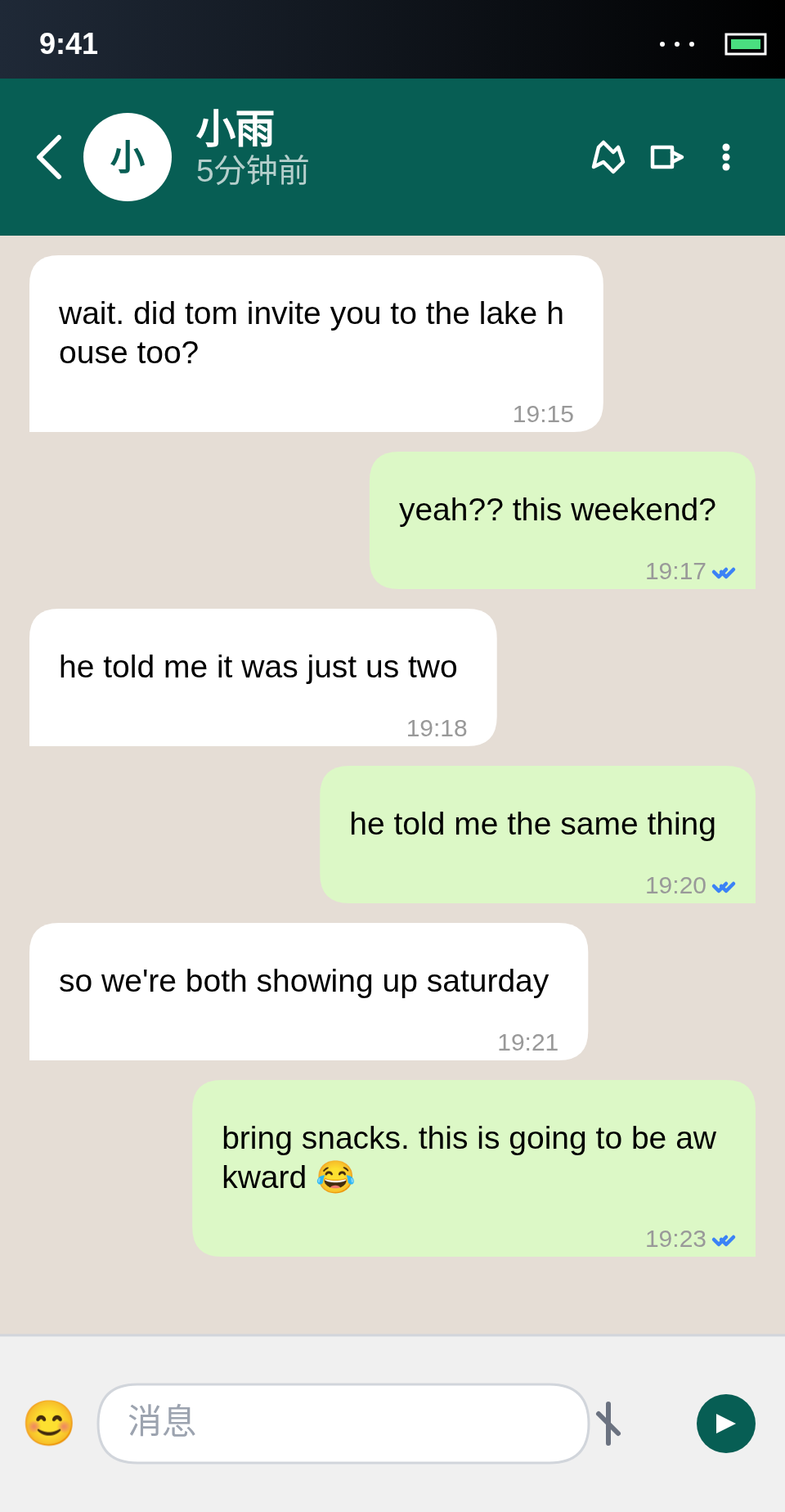
The double-invite script, staged in the WhatsApp generator.
Step 5 — Read it aloud, as the sceptic
Before exporting, read the whole thread out loud, slowly, as someone who does not believe it:
- Does the first reply arrive too fast for what was asked? If the setup asks a hard question and the answer comes back instantly with a paragraph, add a beat — a short "hold on" line — or trim the answer.
- Does every message move the scene forward? Delete any line that only repeats the previous one.
- Would a real person send this exact sequence at these times? If a timestamp contradicts the story (a "good morning" at 11 pm), rewrite the line so the time stops mattering.
- Is the ending the reaction, or an explanation? Cut the explanation.
For more on the details that give a screenshot away, see How to Avoid Detection: Making Authentic-Looking Chats — the visual and timing checks there pair with the writing checks here.
Step 6 — Export and label it honestly
Export the chat as a clean PNG with no watermark, then share it where the scene belongs — a story, a slide, a pitch deck, a classroom example. If the screenshot stands in for a real conversation anywhere a viewer might take it as evidence, label it as illustrative. Fake chat screenshots are a creative format for stories, parody, education, and design mockups; never use them to deceive people into believing a fabricated conversation was real — no fake evidence, no fake endorsements presented as genuine.
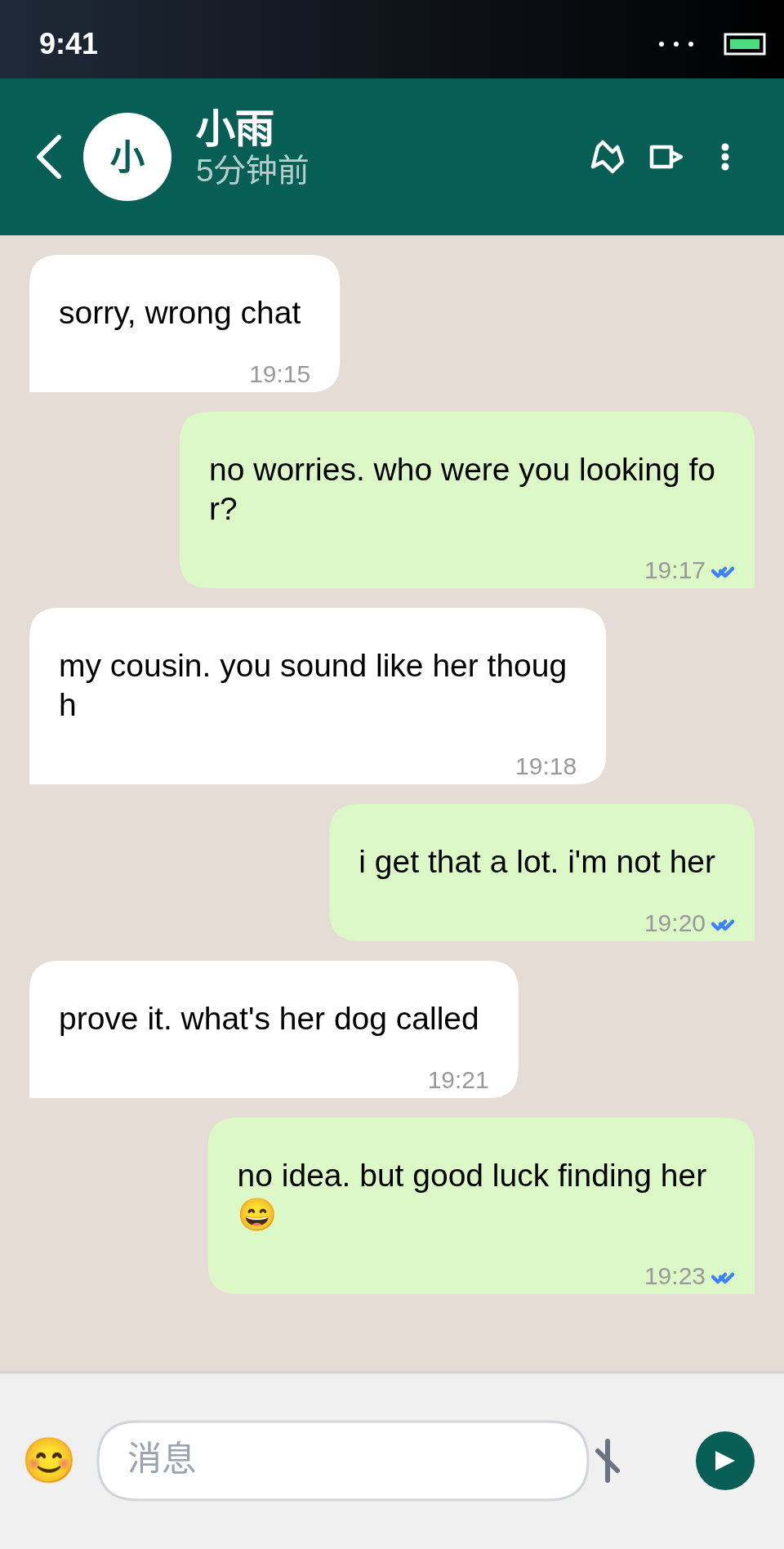
The wrong-number exchange, exported from the WhatsApp generator.
Three starter scripts
Stuck on the first line? Start from one of these, then make it yours:
- The wrong number. "sorry, wrong chat" — except the stranger keeps answering, and the conversation gets funnier with every correction.
- The early delivery. A customer messages a shop about a parcel that arrived a day early; the shop's reply turns a complaint into a thank-you.
- The double invite. Two friends discover they were both invited to the same trip. The whole chat is the three messages where they piece it together.
Each one is a setup, a turn, and a landing — nothing more. Write it in six to ten lines, stage it, and read it aloud before you export.
Try it now
The fastest way to learn is to write one short script and stage it: pick a one-sentence scenario, write six to ten lines in three beats, then open the WhatsApp, Telegram, or iMessage generator and rewrite the thread bubble by bubble. It takes about fifteen minutes, and the second one will take five.