How to Make iMessage Chat Screenshots: A Step-by-Step Guide
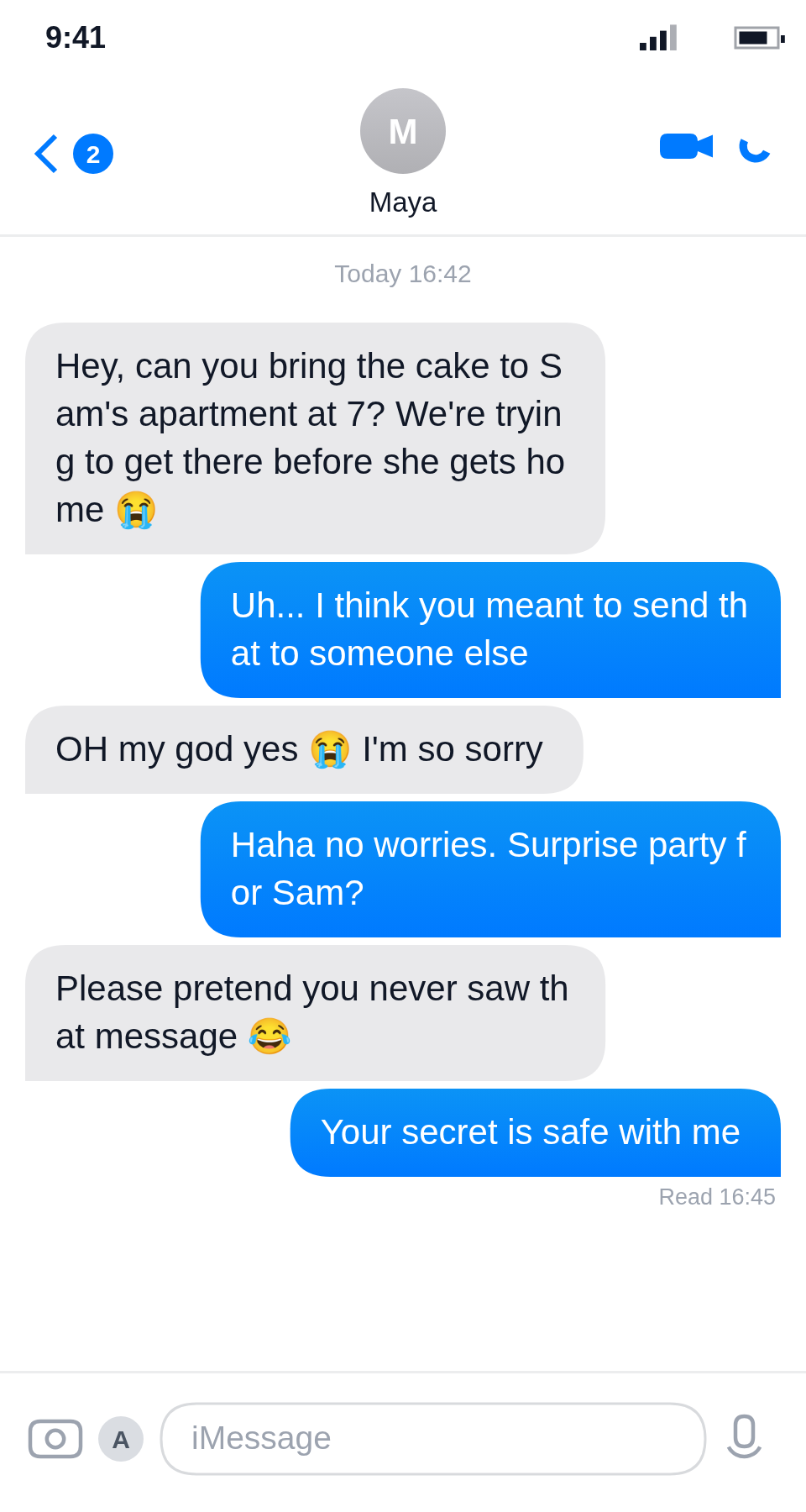
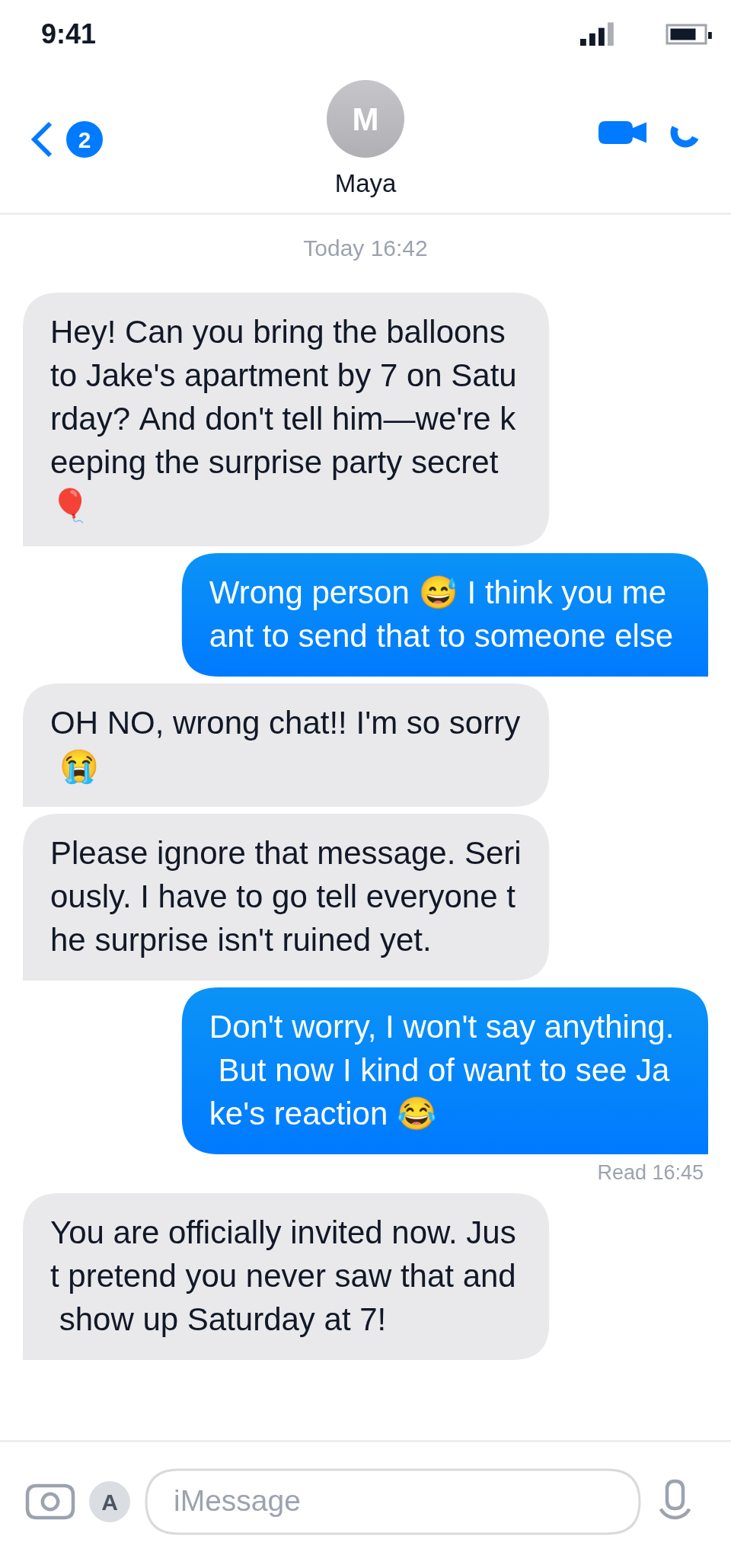
iMessage screenshots have their own look: blue bubbles for iMessages, grey bubbles for the other side, "Delivered" and "Read" receipts under the last outgoing message, and the familiar iPhone message header with a date line. Get any of those details wrong and the screenshot reads as fake instantly. This guide walks you through making a believable iMessage chat screenshot in about five minutes, using ChatShot's free iMessage chat generator.
What you'll need
- A browser (phone or desktop — no install, no signup for the generator)
- The idea for your conversation: who is talking, and what about
Step 1 — Open the iMessage generator and get a starting thread
Go to the fake iMessage chat generator. You'll see a phone-style iMessage preview showing an example conversation. Describe your scenario — who is texting, what just happened, and the tone — and generate a starting thread from it. The contact name and the thread's timing come from that generated thread.
Editing is not available yet at this point: the "Edit chat" control stays disabled until a thread has been generated, so generate first, then edit.
> Making a different platform? The WhatsApp chat generator and the Telegram generator have their own editors — only the bubble style and receipts change.
Step 2 — Rewrite the dialogue, bubble by bubble
Turn on edit mode, then click any bubble to rewrite its text. Hovering a bubble also shows two controls: + inserts a new message right after that line, and × deletes the line.
Three limits to know before you plan the script around them:
- You edit a generated thread; you don't type one from a blank editor. There is no blank message list to fill in line by line.
- Inserted messages are always yours. A message added with + lands on the right in blue, starting as "New message" for you to rewrite — you can't choose the sender for an inserted line, so build the other side's lines by rewriting existing grey bubbles.
- Timestamps are not editable. Each message keeps the time it was generated with (an inserted message gets the current time). If a time reads wrong for your story, rewrite the wording or regenerate — don't plan on retiming individual bubbles.
If you're stuck on the script, start from a one-sentence scenario — for example, "a friend texts the wrong person about a surprise party" — and shape the generated thread around it: rewrite the turning point first, then fix the setup and the reaction, deleting any line that feels staged.
Step 3 — Check the chat frame: contact, avatar, header
The frame is fixed, so check it rather than configure it:
Realism tip: most believable iMessage chats have short, uneven messages. A wall of perfectly punctuated paragraphs reads as written, not texted. This generator models a one-to-one conversation — plan group exchanges as a two-person thread.
Step 4 — Edit the dialogue for iMessage pacing
iMessage conversations have a rhythm. Shape the generated thread against it by rewriting — not by retiming:
- Vary message lengths. Mix one-word reactions ("lol", "wait what") with longer explanations — and split a long thought into two or three short bubbles with +, the way people actually text.
- Let pauses live in the wording. You can't set time gaps between bubbles, so make a pause believable through the dialogue itself — a new topic, a "sorry, was driving" line — instead of relying on timestamps you can't change.
- Don't plan around receipts. The receipt under the last outgoing message is automatic: "Delivered", or "Read" with a time when the generated thread marks it read. You can't toggle it, so check that it matches the story and regenerate if it contradicts it.
- Mind the bubble colors. Blue on the right, grey on the left — swapped colors are the single most common mistake in fake iMessage screenshots. Remember: anything you insert lands on the blue side.
Step 5 — Check the details before exporting
Zoom out and scan the whole screenshot like a skeptical viewer:
- Do the timestamps read plausibly top-to-bottom, even though you can't edit them?
- Are the contact name, initial avatar, and bubble colors consistent on every message?
- Does the layout match iMessage's conventions — blue outgoing bubbles, grey incoming bubbles, one receipt under the last outgoing message, and the date line at the top?
The two exports below were generated from the same one-sentence scenario — a friend texting the wrong person about a surprise party. The first is unedited; in the second, two bubbles were rewritten to sharpen the mix-up. The generator assigns the contact name and timing, so the two threads differ in detail; what editing changes is the wording, bubble by bubble.
Step 6 — Export and share
Export the chat as a clean PNG with no watermark, then share it anywhere — Instagram, X, TikTok — or drop it into an article, pitch deck, or classroom slide.
Ideas to try first
- Texting story opener — draft the first exchange of a chat-fiction story; keep messages short and leave the hook in the last bubble.
- Product demo mockup — mock up a customer texting about your product for a landing page or pitch deck. (Mark it as illustrative if it stands in for real customers.)
- Prank setup — the classic "wrong number" exchange; keep it harmless and obviously fictional.
Keep it honest
Fake chat screenshots are a creative format — for stories, parody, education, and design mockups. Never use them to deceive people into believing a fabricated conversation was real: no fake evidence, no fake endorsements presented as genuine.
Try it now
The fastest way to learn is to make one: open the fake iMessage chat generator, describe a two-line scenario, generate the starting thread, and rewrite it bubble by bubble before you export. It takes under a few minutes.
Need other platforms? The WhatsApp and Telegram generators work the same way, with the same six steps.