How to Use Fake Chat Screenshots in a YouTube Video or Thumbnail
A chat screenshot is one of the fastest ways to open a YouTube video: three messages on screen tell the viewer what the video is about before a word is spoken. It also works as a thumbnail — a short exchange with one shocked reply reads at phone-feed size where a paragraph never would.
The catch is that a YouTube audience is quick to call out a fake. A chat frame that looks like a leaked private conversation will read as deceptive, and a thumbnail that promises a conversation the video never shows will cost you the click-through and the trust. This guide builds the shot the honest way: a short fictional exchange, exported from ChatShot, placed on a 1280×720 canvas for the thumbnail or dropped into the timeline as a still, and labelled as a mockup.
The short version
Step 1 — Pick one moment, not the whole story
A thumbnail holds one idea; a cold open holds one beat. Choose the single exchange that makes a scroller understand the video: the message that starts the story, the reply that flips it, the question the video answers. If the video covers several chats, make one frame per beat — do not cram a whole conversation into one thumbnail.
Write the exchange before you open the generator: two voices, one idea per message, 4–8 messages. Keep names fictional and short ("Maya", "Leo"), and keep the topic obviously illustrative — a mix-up, a plan falling apart, a question answered in two lines — never a real person's words.
Step 2 — Build the chat in the matching generator
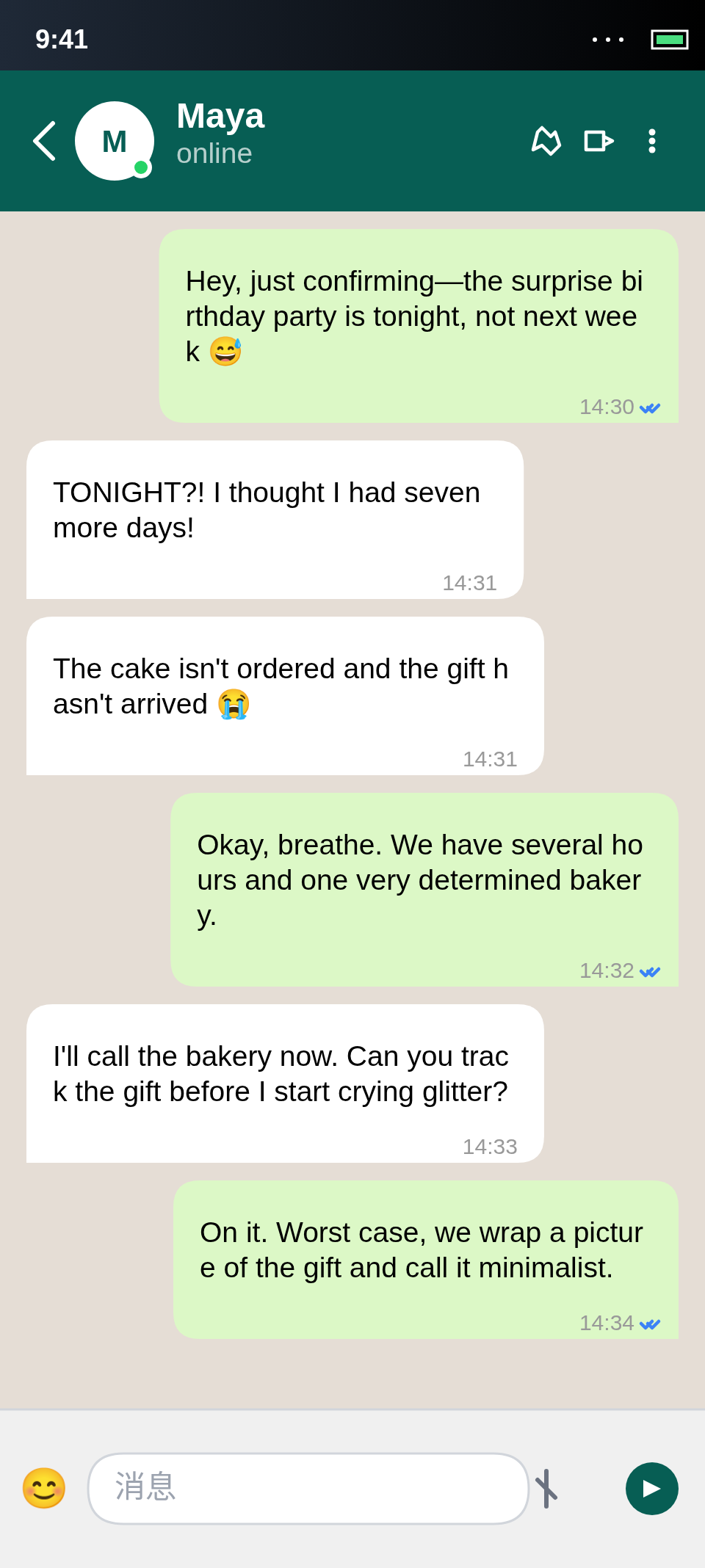
Open the generator for the platform your screenshot should look like: the WhatsApp chat generator, the Telegram chat generator or the iMessage generator. Describe the scenario, read the generated draft as a stranger would, and rewrite any line that sounds scripted. Click a bubble to edit its text; use "+" to insert a message on your side; delete with ×.
Check the header before you export: the contact name, the status line, the timestamps and the read ticks come with the generated conversation, and the editor does not let you set them message by message. If a timestamp contradicts your story, regenerate or rewrite the wording. Avatars are the contact's initials — there is no photo upload — and exports render the classic light theme. Both are fine for video: a clean light chat stays legible when the frame is shrunk to feed size.
Step 3 — Export the chat image
Export the finished chat as an image from the generator. This is the raw material, not the finished thumbnail or video shot: the export is the chat itself, at the generator's own size, with no headline and no YouTube framing. ChatShot exports a still image, not a video — the next steps are where it becomes a thumbnail or a timeline shot.
Step 4 — Make the thumbnail (1280×720)
Open a design tool and make a canvas at exactly 1280×720 px (16:9), then place the exported chat on it. The sizes below were checked against 2026 sizing guides in November 2026; YouTube changes these pages, so confirm them in YouTube Studio before you upload.
- Standard video thumbnail: 1280×720 px, 16:9, under 2 MB, JPG/PNG/GIF/BMP. YouTube accepts as little as 640 px wide, but 1280×720 is the recommended size for sharpness on every screen.
- Shorts thumbnail: 1080×1920 px, 9:16 vertical, same 2 MB cap.
- Readability: the thumbnail must still read at roughly 120–160 px wide on a phone feed. One focal point, one short exchange, at most 3–4 words of added text — a thumbnail that needs reading is a thumbnail that gets skipped.
Leave breathing room: the chat should fill most of the frame, with any added words in one short line and never across a bubble. A frame that is half headline and half chat explains neither.
Step 5 — Use the still inside the video
For the video itself, drop the exported image onto the timeline as a still and hold it for 3–5 seconds — long enough to read, short enough to keep pace. Zoom in slightly on the key reply if the full chat is too small to read at playback size, and cut back to the full frame so the viewer sees the whole exchange.
Say on screen or in the description that the chat is a recreation: "Illustrative mockup" as a lower-third, or one line in the description ("Chat shown is a recreated mockup, not a real conversation"). The label costs nothing and removes the one thing that turns a good opener into a misleading-content complaint.
Step 6 — Check it at feed size, then publish
Before uploading, look at the finished thumbnail shrunk to phone-feed size and ask three questions:
Only when all three pass should the thumbnail go on the video. Keep the exported chat image and the canvas file together, so a later size change is a re-export, not a rebuild.
Frequently asked questions
Can I upload the ChatShot export directly as a YouTube thumbnail? No — not as-is. The export is the chat image at the generator's own size. Place it on a 1280×720 px canvas (16:9, under 2 MB) with at most a few words of text first; YouTube requires the 16:9 ratio and rejects files over 2 MB.
What size should a Shorts thumbnail be? 1080×1920 px portrait (9:16), same 2 MB cap, JPG/PNG/GIF/BMP.
Can ChatShot export a video of the chat? No. ChatShot exports a still image. For a video, use the still on the timeline for 3–5 seconds, or as a thumbnail — it is a picture, not a clip.
Can the chat show a real conversation from my video? Do not use a real person's messages, name or photo in a video or thumbnail. Build the exchange from fictional names and an everyday scenario, and label it as a mockup on screen or in the description.
Which platform should the chat look like? Whichever the video is actually about. A WhatsApp-style frame for a Telegram story, or an iMessage frame for an Android story, will confuse the exact people the thumbnail is meant to convince. Match the skin to the story.
Does ChatShot export in dark mode? No. Exports render the classic light theme; a dark renderer is on the roadmap. The light export is the right choice for a thumbnail in any case — it stays legible at small sizes.