How to Use Fake Chat Screenshots in a Product Demo or Pitch Deck
A chat screenshot on a slide has one job: make the audience feel the moment a product changes something for a real person. Most demo screenshots fail that job in the same way — too many messages, text too small to read from the back of the room, and no label saying the conversation is illustrative. The fix is not a better generator. It is a shorter conversation, a bigger image, and an honest caption.
This guide walks through that in six steps, using ChatShot's free generators for WhatsApp, Telegram, and iMessage. The same steps work for a live demo, a recorded walkthrough, or a single slide in a pitch deck.
Before you start: one moment, two voices
Every ChatShot editor models a one-to-one conversation: one contact, two voices. That fits a demo well — a demo is one user, one moment — and it sets the limit honestly: this format cannot show a group thread, a photo message, or a voice note. If the story you need to tell requires any of those, pick a different visual for the slide. Do not force a two-person text exchange to stand in for something it is not.
Decide the moment before you write anything. A good demo moment is one exchange where something changes: a customer gets an answer, a teammate spots a mistake, a friend finally understands. If you cannot name the change in one sentence, the slide is carrying two ideas. Cut one.
Step 1 — Write the moment as one sentence
Write down, in plain words, what the viewer should take away from the slide:
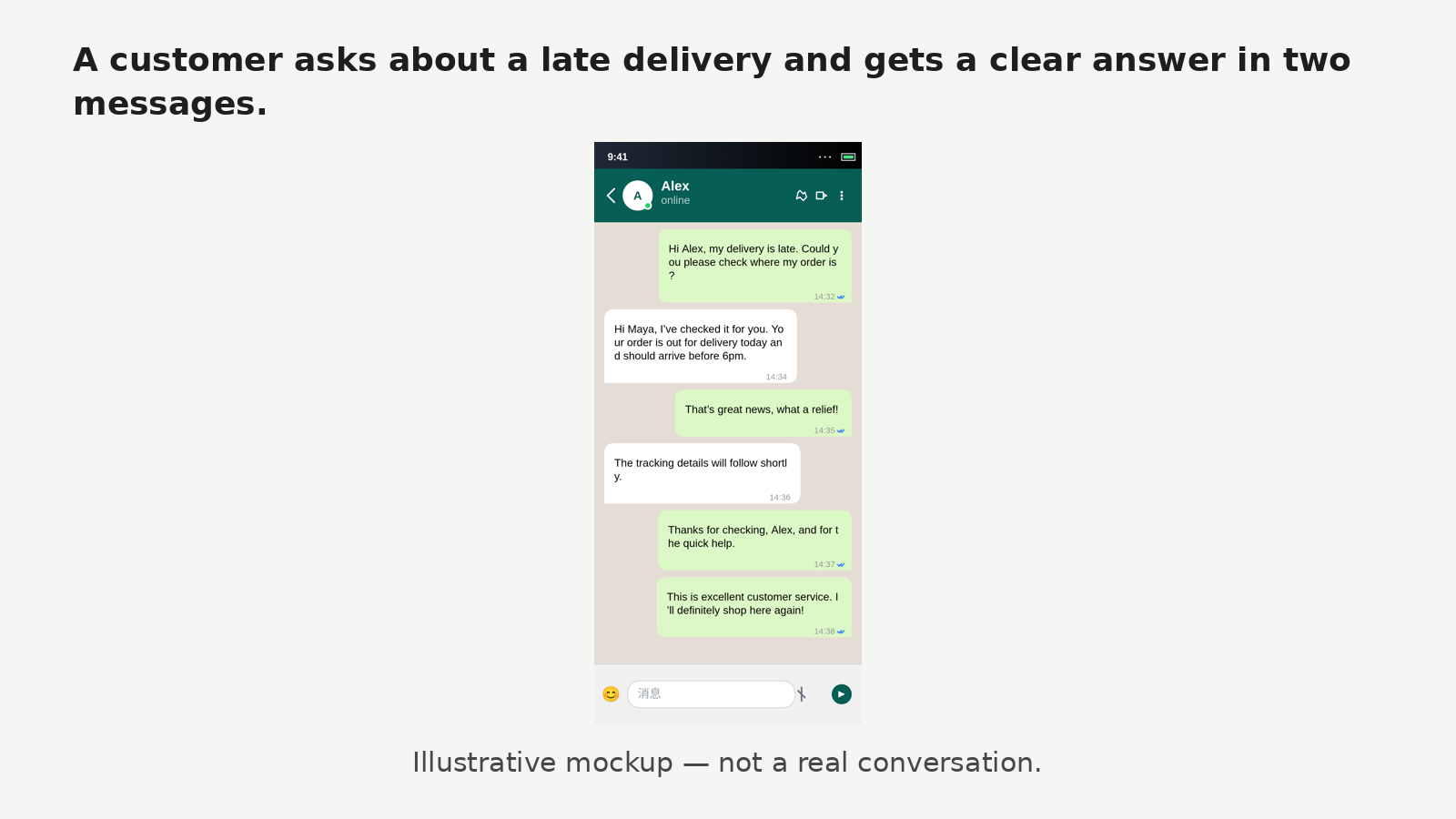
- "A customer asks about a late delivery and gets a clear answer in two messages."
- "A new user sets up the product by texting support, and it works the first time."
- "Two colleagues realise the same report was sent twice, and fix it in one exchange."
That sentence is your test for everything after it. Any message that does not serve it gets cut, however funny it is. A demo slide is not the place for the whole conversation — it is the place for the part that proves the point.
Step 2 — Script 6–10 lines in three beats
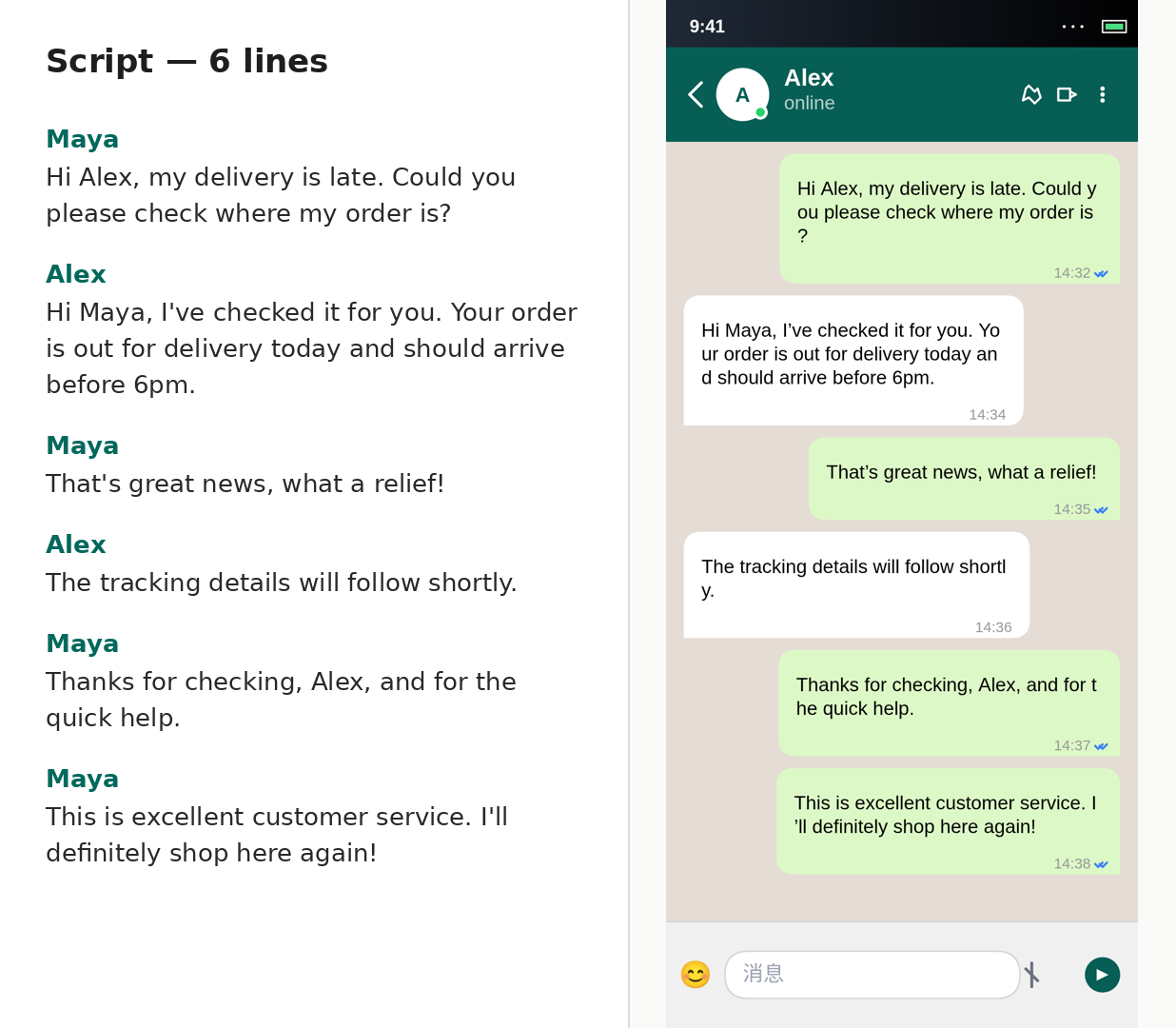
Draft the exchange before you open the generator, in three short beats: setup (2–3 messages that establish who is talking and what is normal), turn (2–4 messages where the change happens), and landing (1–3 messages of reaction or resolution). Keep each message short and uneven, the way people actually text, and keep the total to 6–10 lines — a slide screenshot longer than that becomes a wall of text nobody finishes reading.
For the writing itself, see How to Write Dialogue for Fake Chat Screenshots That Reads Like a Real Conversation: the rules there — distinct voices, short uneven lines, no stage directions in the dialogue — are what keep a demo exchange from reading as scripted. Write the script in a notes app, not inside the bubble editor; rewriting a finished script there is fast, composing one there is slow.
Use fictional names throughout. Never put a real customer, a real colleague, or a real phone number on a demo slide, even with names changed halfway — a viewer who recognises a real thread will stop trusting everything else on the slide.
Step 3 — Stage the script in the generator
Open the generator for the platform your audience will recognise — the fake WhatsApp chat generator, the Telegram generator, or the fake iMessage chat generator — describe the scenario, check the generated dialogue against your script, and rewrite the thread bubble by bubble to match it: replace each line with your own wording, delete lines that do not earn their place, and insert lines only where the beat needs one.
Two limits to plan around, verified on the iMessage editor and true to the one-to-one model everywhere: inserted messages land on your side of the conversation, so build the other person's lines by rewriting existing bubbles rather than by inserting them; and timestamps are fixed once a thread exists, so if a time reads wrong for your story, change the wording or regenerate rather than planning to retime individual bubbles. Check the header while you are there: one contact name, an initial-letter avatar, and the platform's usual bubble colours. A formal name on a chat between friends, or a nickname on a customer-support exchange, breaks the illusion faster than any typo.
Step 4 — Export, then check it at slide size
Export the chat as an image, then do the check most people skip: put the exported image on the actual slide, at the actual size, and read it from the distance your audience will sit at. If any message needs squinting, the script is too long — cut a line, not the font. A demo screenshot that cannot be read in three seconds is decoration, not evidence.
Check three things at slide size, as a stranger would:
- The first two bubbles explain the scene. A viewer who reads nothing else should still know who is talking and what is at stake.
- The turning message is visible without hunting. It should sit near the middle of the thread, not buried at the bottom edge of the frame.
- Nothing contradicts the story. A "good morning" timestamped late at night, or a reply that arrives instantly with a paragraph, will be the thing the audience remembers. Rewrite the line so the detail stops mattering.
For the visual and timing details that give a screenshot away, see How to Avoid Detection: Making Authentic-Looking Chats — the checks there pair with the writing checks in Step 2.
Step 5 — Place one chat per slide, with room to breathe
One screenshot per slide, large, with the rest of the slide nearly empty. Give the image at least half the slide width, keep the slide title to the takeaway sentence from Step 1 (not a description of the screenshot), and leave the bottom of the slide for the caption in Step 6. Resist the urge to show the before-and-after, the product UI, and the chat all at once — each of those is a slide, and stacking them is how a demo slide becomes unreadable.
If the demo is live rather than a deck, the same rule applies: show the screenshot full-screen, say the takeaway sentence out loud, and pause. The pause is what lets the audience read the exchange. Talking over the screenshot while it is on screen guarantees nobody reads it.
Step 6 — Label it honestly, every time
Every demo or deck use gets a caption, on the slide itself, in words a viewer cannot miss: "Illustrative mockup — not a real conversation." That label is not a legal footnote to shrink into a corner. Put it directly under the screenshot, in the same size as the rest of the slide text. Fake chat screenshots are a legitimate format for demos, mockups, education, and storytelling; they stop being legitimate the moment a viewer could take them as evidence that a real conversation happened. Never use them as fake customer testimonials, fake endorsements, or fake evidence — and never present a mockup as a real user's words in a pitch, a demo, or a sales call.
A short checklist before the demo
- One moment, named in one sentence, and every message serves it.
- 6–10 lines, two voices, fictional names, no real numbers.
- Generated draft checked and rewritten bubble by bubble; header, timestamps, and ticks checked against the story.
- Exported image read at real slide size from audience distance; the turn is visible in three seconds.
- One chat per slide, takeaway as the title, caption "Illustrative mockup — not a real conversation" under the image.
If any item on that list fails, fix the script, not the slide design. The screenshot is only as convincing as the conversation inside it.
Try it now
Pick one moment from your own product — the exchange where a user first gets value — write it in six to ten lines, then open the WhatsApp, Telegram, or iMessage generator and stage it. Put it on one slide, label it, and read it from the back of the room. If it survives that test, it will survive the demo.